Keeping WordPress updated is essential for security, performance, and compatibility. Updates often include important security patches, bug fixes, and improvements that keep your website running smoothly.
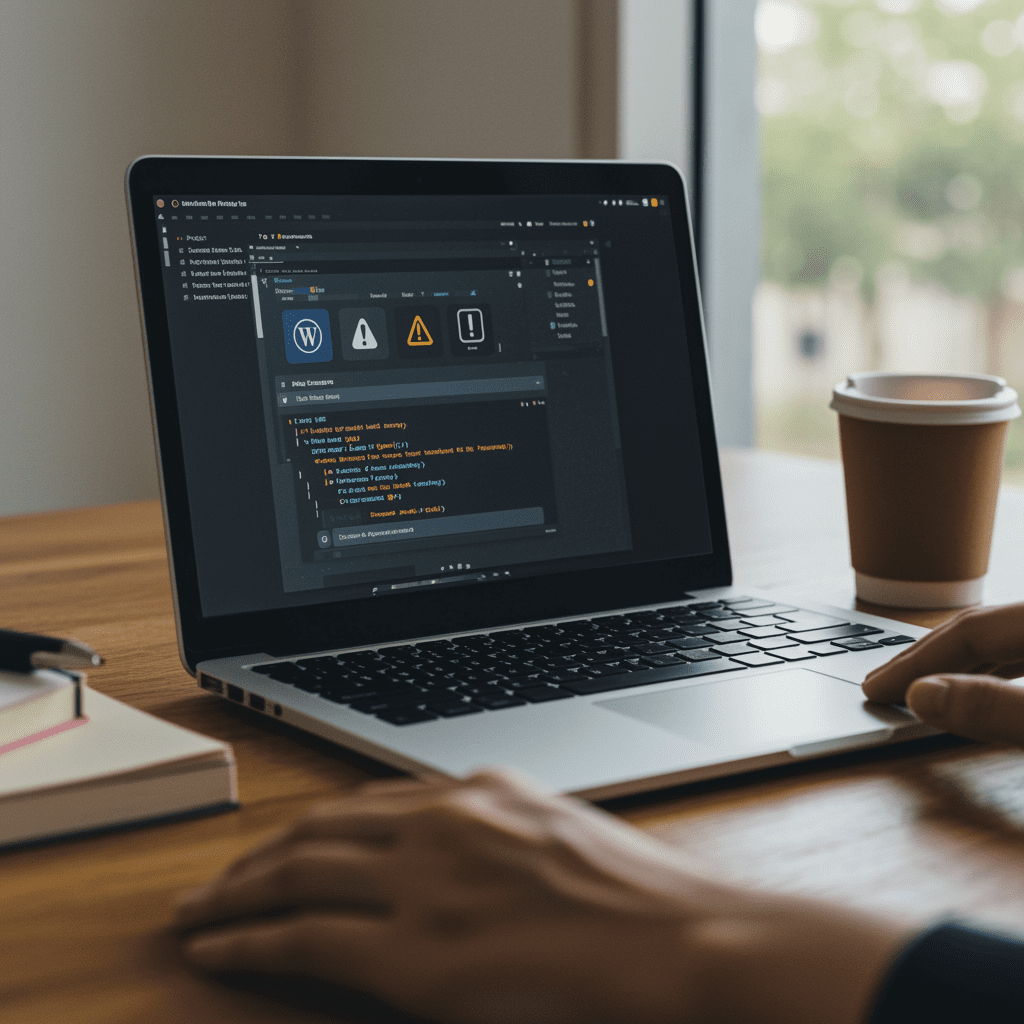
However, updating WordPress without preparation can sometimes cause problems. Plugin conflicts, theme compatibility issues, or outdated code can break parts of your website if updates are applied without testing.
Following a simple update process can help you keep your site secure while minimizing the risk of downtime.
Why WordPress Updates Are Important
WordPress updates typically include several improvements that help protect and maintain your website.
Updates may include:
- security patches that protect your site from vulnerabilities
- performance improvements
- bug fixes
- compatibility updates for newer plugins and themes
Ignoring updates can leave your site vulnerable to security risks and may cause plugins or themes to stop working correctly.
Risks of Updating WordPress Without Preparation
Updating WordPress without preparation can lead to unexpected issues.
Common problems include:
- plugin conflicts
- broken layouts or styling issues
- forms or checkout pages failing to work
- compatibility issues with themes
- features disappearing from the admin dashboard
These problems are especially common on websites that rely on many plugins or custom functionality.
A Safe WordPress Update Checklist
Following a simple process can help ensure updates are applied safely.
1. Create a Full Backup
Before making any updates, create a complete backup of both your website files and database. This allows you to restore the site if something goes wrong.
2. Update Plugins First
Plugins are often the most common source of compatibility issues. Updating plugins first helps ensure they are compatible with the latest version of WordPress.
3. Update Your Theme
Next, update your theme to the latest version. Themes are responsible for how your site is displayed, so ensuring compatibility is important before updating WordPress core.
4. Update WordPress Core
Once plugins and themes are updated, you can safely update the WordPress core software.
After updating, review your site to make sure everything is working properly.
5. Test Key Pages
After updates are complete, test the most important parts of your site, including:
- homepage and navigation
- contact forms
- ecommerce checkout pages
- login areas
- admin dashboard features
Testing these areas helps ensure that no functionality has been affected by the update.
Using a Staging Environment
Professional WordPress development workflows often use staging environments. A staging site is a private copy of your website where updates can be tested before being applied to the live site.
This approach allows developers to detect plugin conflicts or compatibility issues without affecting visitors.
For businesses with complex websites, staging environments are one of the safest ways to manage updates.
When Ongoing WordPress Maintenance Makes Sense
As websites grow, managing updates manually can become more difficult. Sites that rely on multiple plugins, ecommerce features, or custom functionality often benefit from regular monitoring and maintenance.
Professional WordPress maintenance services can handle updates, backups, security monitoring, and troubleshooting to ensure your site remains stable and secure.
A proactive maintenance strategy helps prevent issues before they affect your website or your visitors.